Data Protection
Backup Basics: How to Protect Files Before Something Goes Wrong
By Matthew Roupp · Updated · 10 min read
A practical guide to cloud backup, external drives, File History, Time Machine, and building a simple backup habit that normal people can actually follow.
Backups are boring until they are suddenly priceless
Most people think about backups after a hard drive fails, a laptop gets stolen, a phone breaks, ransomware hits, or a file gets deleted. By then, recovery can be expensive, incomplete, or impossible. A backup plan is not exciting, but it protects schoolwork, family photos, tax documents, business files, and personal records.
The best backup system is the one you will actually use. A perfect plan that never gets set up is worse than a simple plan that quietly runs every day.
Cloud sync is helpful, but understand what it does
Services like OneDrive, Google Drive, iCloud, and Dropbox can sync files between devices and keep a copy online. That is useful if a laptop dies or you need files from another device. However, sync can also copy mistakes. If a file is deleted, corrupted, or changed, that change may sync too.
Many cloud services offer version history or deleted-file recovery, but limits vary. That is why cloud sync should be part of a backup plan, not the only thing someone understands.
External drives are still useful
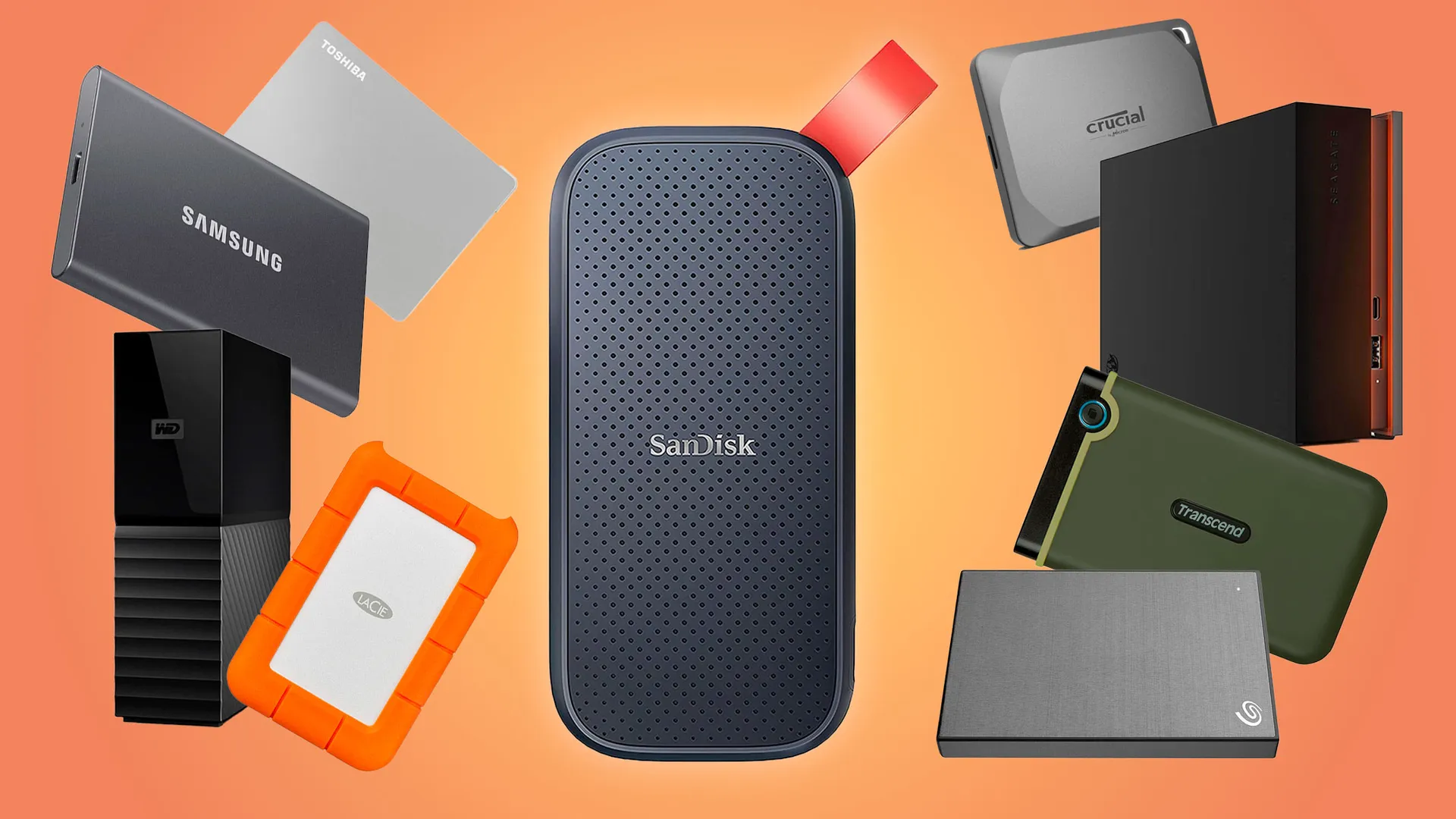
An external hard drive or SSD can hold local backups without relying on internet speed. Windows File History can back up selected folders to an external drive or network location. macOS Time Machine can automatically back up files to a connected storage device.
Local backups are especially useful for large photo libraries, videos, project folders, and full computer recovery. The downside is that a drive connected all the time can be damaged, stolen, or affected by malware. For important files, it helps to disconnect a backup drive when it is not actively backing up.
The simple 3-2-1 idea
A common backup idea is 3-2-1: keep three copies of important data, on two different types of storage, with one copy off-site. For a normal household, that might mean the computer, an external drive, and a cloud backup. For a small business, it may mean a computer or server, a local NAS, and cloud storage or another off-site backup.
The exact tools can vary. The important part is avoiding one single point of failure. If every copy is in one laptop bag, that is not much of a backup plan.
Test restores before you trust the backup
A backup should be tested. You do not need to restore the whole computer every week, but you should occasionally recover a sample file and confirm it opens. A backup that cannot restore is just a comforting decoration. Fancy, but useless.
Simple backup checklist
- Identify the folders that actually matter: Documents, Desktop, Photos, schoolwork, tax files, and projects.
- Turn on cloud sync for critical everyday files.
- Use File History, Time Machine, or another backup tool for local backups.
- Keep at least one copy away from the computer itself.
- Test restoring a file every so often.
- Write down where backups are stored and how to restore them.