Computer Care
Basic Computer Maintenance: Keep a PC Feeling Healthy
By Matthew Roupp · Updated · 9 min read
A simple maintenance guide for updates, startup apps, storage, dust, restarts, safe downloads, and when to ask for help.
Start with updates and restarts
Updates can fix bugs, improve stability, and patch security issues. Restarting gives the computer a clean start and lets updates finish installing. Many people close a laptop lid for weeks and never fully restart, then wonder why everything feels haunted.
A good first step for weird behavior is to save work, restart, check updates, and then test again. It sounds basic because it is basic, but basic works more often than people expect.
Watch startup apps
Startup apps open automatically when the computer turns on. Some are useful, like security tools or cloud sync. Others quietly slow down the system every day. Too many launchers, updaters, chat apps, RGB tools, and background utilities can make a decent PC feel tired.
Disabling unnecessary startup apps does not uninstall them. It simply stops them from opening automatically. This is a safe performance step when done carefully.
Keep storage from filling completely
Computers need free storage for updates, temporary files, downloads, caches, and normal operation. A nearly full drive can cause slowdowns, failed updates, and general weirdness. Photos, videos, game installs, and old downloads are common space hogs.
Before deleting, check what is actually using space. Randomly deleting system folders is a fantastic way to create a new problem with confidence and panic. Use built-in storage tools first.
Dust and heat matter
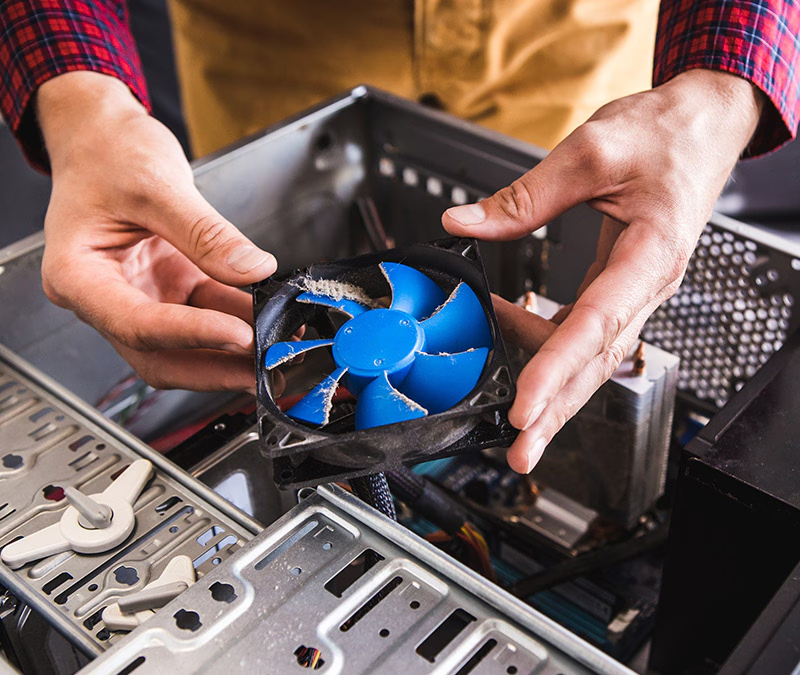
Heat can make a computer slow down to protect itself. Dust buildup blocks airflow, especially in desktops, gaming laptops, and older systems. Loud fans, high temperatures, shutdowns under load, and poor gaming performance can all point toward cooling issues.
Cleaning should be done carefully. Power the device off, avoid liquid cleaners inside the machine, and do not spin fans wildly with compressed air. If opening the computer feels uncomfortable, it is better to ask for help than break clips or cables.
Avoid miracle cleaner apps
Many slow-computer ads promise one-click fixes, registry cleaning, driver magic, or instant performance boosts. Some are unnecessary, some are aggressive, and some are shady. Built-in tools, safe updates, proper diagnosis, and good backups are a better foundation than installing random fix-it software.
Monthly maintenance checklist
- Restart the computer fully.
- Check Windows Update or macOS updates.
- Review startup apps.
- Delete obvious old downloads after confirming they are not needed.
- Empty the recycle bin/trash after reviewing it.
- Confirm backups are running.
- Look for unusual fan noise, heat, or error messages.