Buying Advice
Repair, Upgrade, or Replace: What Should You Do With an Older Computer?
By Matthew Roupp · Updated · 9 min read
A practical decision guide for older PCs and laptops, including storage upgrades, RAM, batteries, Windows compatibility, and repair cost judgment.
Do not replace before diagnosing
A slow computer is not automatically a dead computer. It could be overloaded with startup apps, nearly full on storage, running an old hard drive, low on RAM, overheating, infected with unwanted software, or waiting on updates. Some of those problems are cheap to fix.
The first step is to figure out what is slow. Startup? Web browsing? Opening files? Gaming? Video calls? Everything? The symptom points toward the likely cause.
Upgrades that often help
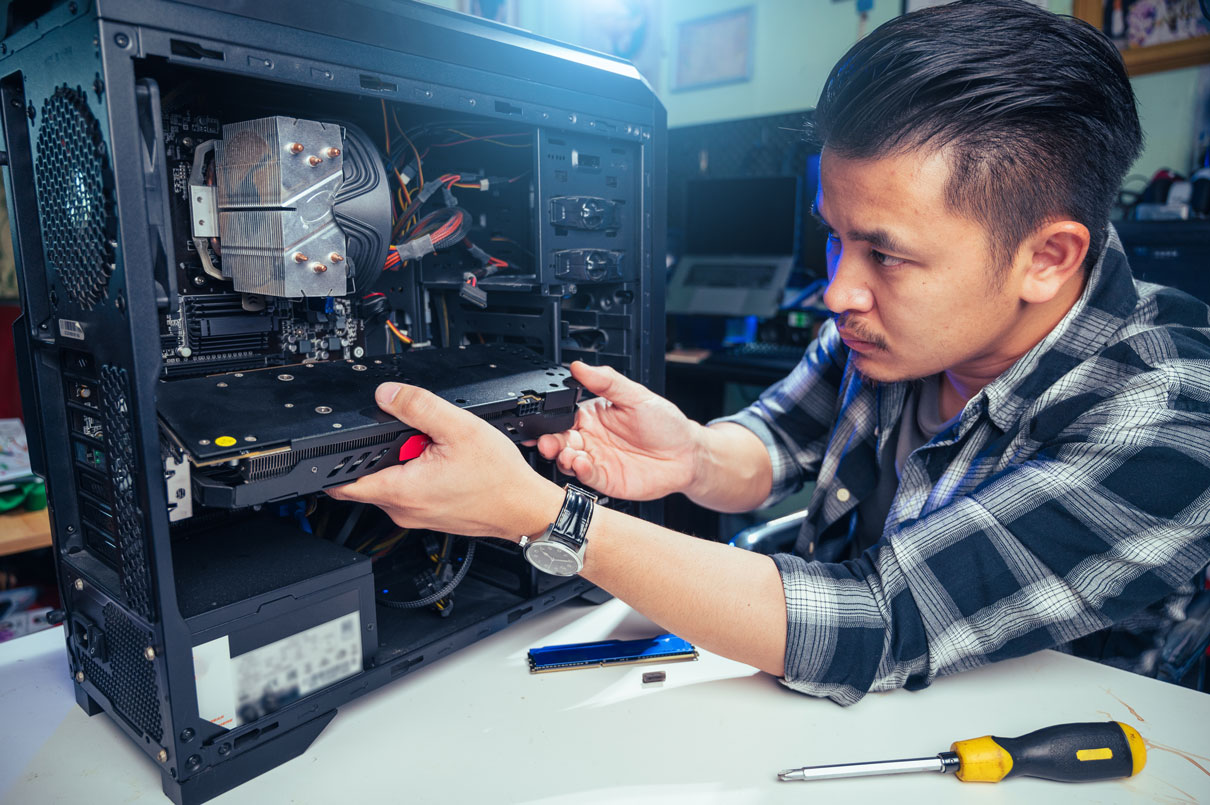
Replacing an old hard drive with an SSD can make an older computer feel dramatically faster. Adding RAM can help with multitasking if the system currently runs out of memory. Cleaning dust and replacing thermal paste can help some overheating systems, though that depends on the device and skill level.
Laptops are more limited than desktops. Some modern laptops have soldered RAM or storage that is difficult or impossible to upgrade. Before planning an upgrade, check the exact model.
When replacement makes sense
Replacement starts to make sense when the computer cannot run required software, no longer receives needed updates, has multiple failing parts, has a weak battery plus a damaged screen, or would cost too much to repair compared with buying a better machine.
Windows 11 compatibility is also part of the decision for Windows users. A computer that cannot officially support a modern operating system may still work for some tasks, but it may not be the best long-term choice for everyday use.
The repair math
Ask three questions: How much will the repair cost? How old is the device? What would a replacement cost that actually meets the person’s needs? Spending $200 to make a decent computer last a few more years may be smart. Spending $350 on a weak, old laptop with a bad battery and unsupported hardware may not be.
There is also a personal side. A student, parent, remote worker, or small business owner may need reliability more than the absolute cheapest option. Downtime has a cost too.
Repair-or-replace checklist
- Check whether the device has an SSD or old hard drive.
- Check RAM amount and whether it is upgradeable.
- Check battery health on laptops.
- Check Windows 11 or required software compatibility.
- Compare repair cost against a realistic replacement, not the cheapest random laptop.
- Back up files before any repair, upgrade, or reset.