Info & Help · Storage & Backups
Cloning an SSD to a New Drive: A Safe Windows Migration Checklist
Cloning a Windows SSD can save time during an upgrade, but a copy is only useful if the new disk boots and your files are intact. Plan the migration before clicking Start, particularly when the old drive may be failing.
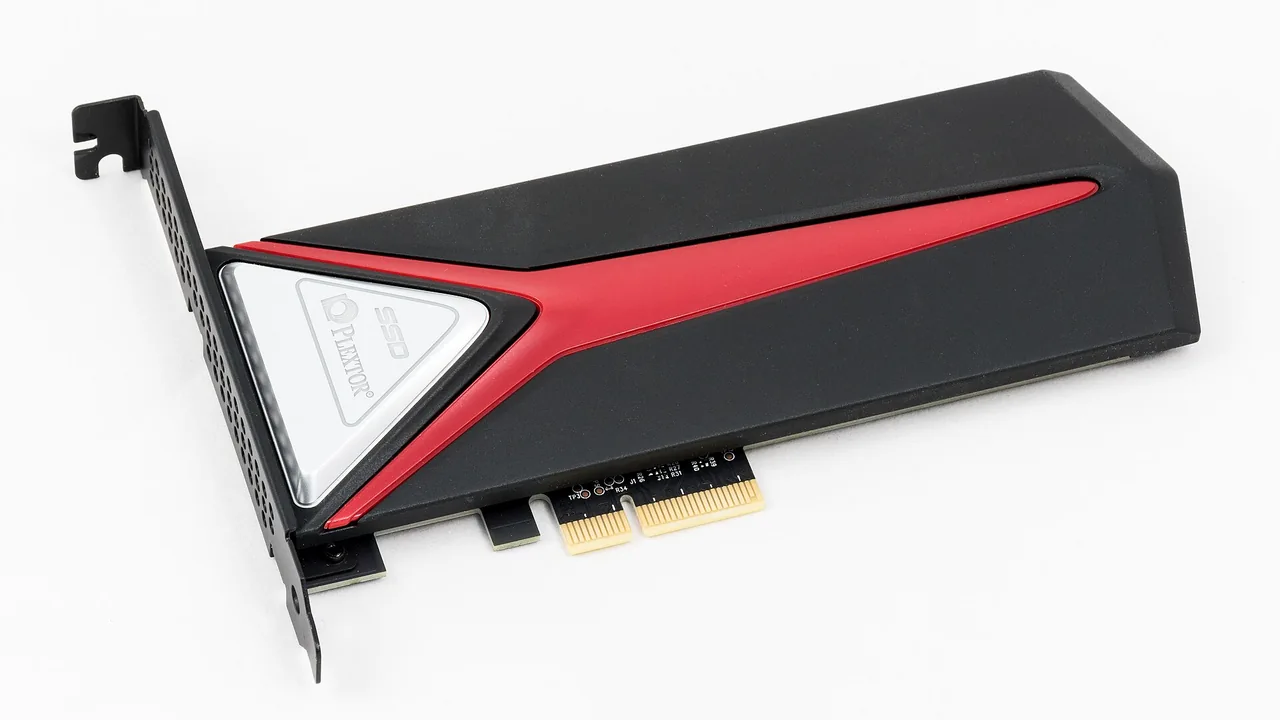
Verify the source and destination
Identify both drives by capacity and model before starting. Confirm the replacement supports the computer's storage interface and physical dimensions. Use software that explicitly supports Windows boot-disk cloning.
Most cloning procedures overwrite the destination. Verify which drive contains the data you want to retain. Make a separate backup of personal files before proceeding.
Consider encryption
If the source uses BitLocker or Device Encryption, store its recovery key first. Some cloning workflows require an unlocked volume or special handling of encrypted partitions; follow the chosen tool's documentation.
Even if cloning succeeds, a boot or hardware change can trigger BitLocker recovery. Do not format the source until the destination has been tested.
Copy the complete boot layout
A Windows boot installation can include an EFI system partition, a Windows partition and recovery partitions. Copying the visible documents and Windows folder alone will not necessarily produce a bootable system.
Use a method designed for system-disk migration, and confirm that required partitions are included. If upgrading to a larger drive, partition expansion can wait until after the clone boots correctly.
First boot and verification
After cloning, shut down and boot from the destination with the source disconnected when feasible. Sign in, test important applications and files, and verify the new disk appears correctly in Disk Management.
Check encryption status and usable capacity, then restart again. Keeping the old drive disconnected avoids confusion over which Windows installation booted.
When cloning fails
Failures can come from unreadable source sectors, a poor USB enclosure, a blocked or encrypted volume, or incompatible partition settings. Save the error message instead of repeating the same operation many times on a damaged SSD.
If files are valuable and the old drive behaves unpredictably, prioritize recovery over performance tests. Retain the old drive until the replacement and backup are verified.
Sources and further reading
Original MR Techworks guidance based on Microsoft technical and support documentation. External text has not been copied.
- Microsoft Support — BitLocker recovery key
- Microsoft Learn — BitLocker FAQ
- Microsoft Support — Backup, restore and recovery
Reviewed November 13, 2026. Recovery options and interface wording can vary by Windows version.